
Last reviewed: 15 October 2026
Exam application workflows differ: some accept prepared photo files, while current SSC and RRB instructions capture the photograph live and ask for a separate signature file. This guide compares the recorded workflows, how published KB bands work, and what to check before opening the active form.
Quick answer
- IBPS and several bank forms publish a 20–50 KB JPG photo and a 10–20 KB JPG signature.
- Current SSC and RRB notices use live photo capture; prepare the separately listed signature file instead.
- Portals check a band: a photo under the minimum is rejected as firmly as one over the cap.
- UPSC and NDA/CDS use a wider 20–200 KB photo range with no fixed pixel size, a live photo during the application, and a 20–100 KB three-signature sheet of 350–500 pixels.
- NTA (NEET, JEE) records a 10–200 KB JPG photo and a 10–100 KB JPG signature.
- Always confirm the current KB and pixel figures in the exam notification — they can change between cycles.
Resize your photo or signature right now
Pick your exam — the tool applies the selected KB target and published pixel dimensions where available. Confirm the current notification. No sign-up, nothing uploaded.
How the KB band works — and why there's a minimum
Most candidates know about the upper KB limit. What catches people out is the lower limit. A file compressed too aggressively — say, a 200×230 px JPG saved at 5 KB — loses so much detail that it becomes blurry and unreadable on the admit card. The portal validator rejects it automatically with the same “file not as per specification” error as an over-large file.
The band (e.g. 20–50 KB) ensures images are both small enough to upload quickly and sharp enough to verify identity. The sweet spot for most exam portals is 25–40 KB for the photo and 12–18 KB for the signature. If your compressed photo lands outside the band, resize to a specific KB target — a general “reduce quality” slider that doesn't let you set the exact output KB won't reliably hit the required range.
Spec table: photo and signature requirements by exam
The table distinguishes prepared-file requirements from live capture and omits photo pixels where the current cited source publishes none. Always confirm the active notification before applying. Sources: SSC, IBPS, SBI, UPSC, Railways, NTA.
| Exam | Photo (KB) | Photo (px) | Signature (KB) | Sig (px) | Format |
|---|---|---|---|---|---|
| SSC CGL / CHSL / MTS | Live capture | No prepared photo file | 10–20 KB | No fixed pixels published | Signature: JPEG / JPG |
| IBPS PO / Clerk | 20–50 KB | 200×230 px | 10–20 KB | 140×60 px | JPG / JPEG |
| SBI PO / Clerk | 20–50 KB | 200×230 px | 10–20 KB | 140×60 px | JPG / JPEG |
| UPSC CSE / IAS | 20–200 KB | No fixed pixels published | 20–100 KB | 350–500 px (three vertically) | JPG |
| UPSC NDA / CDS | 20–200 KB | No fixed pixels published | 20–100 KB | 350–500 px (three vertically) | JPG |
| RRB NTPC / ALP / Group D | Live capture | No prepared photo file | 30–49 KB | 140×60 px | Signature: JPG / JPEG |
| NTA NEET / JEE | 10–200 KB | No fixed pixels published | 10–100 KB | No fixed pixels published | JPG |
Values follow the cited registry sources; verify the active notification because workflows can change between cycles.
SSC exams: CGL, CHSL, MTS and CAPF
The Staff Selection Commission runs India's combined recruitment exams. The current cited workflow captures the photograph live and separately lists a 10–20 KB JPG/JPEG signature.
The most important change in recent SSC cycles: the portal no longer accepts uploaded gallery photos. You must capture the photo live through the SSC portal's camera interface at the time of filling the form. The portal opens a webcam or phone camera window, you take the shot in real time, and the system saves it directly. This means preparation shifts from “have a resized file ready” to “have the right environment ready before you open the form”: clean white wall behind you, soft front lighting, formal dress. The signature, by contrast, is still uploaded as a scanned file.
SSC also enforces a signature style rule almost no other portal has: all-capitals signatures are explicitly rejected. Your signature must be in cursive or running hand. Print block letters do not match that instruction. The listed physical size is about 6.0 × 2.0 cm on white paper with black ink.
For the full SSC spec table, the live-capture prep checklist, and the complete rejection list, see the dedicated SSC CGL / CHSL photo and signature guide.
Prepare your SSC signature: SSC live-photo guide & signature resizer →
Banking exams: IBPS PO, IBPS Clerk, SBI PO, SBI Clerk
IBPS and SBI use consistent specs across their PO and Clerk exams. The confirmed photo requirement (per ibps.in and sbi.bank.in) is a JPG between 20 KB and 50 KB at 200×230 px. The signature is a JPG between 10 KB and 20 KB at 140×60 px.
These portals use prepared photo and signature uploads and also record a separate live-photograph step. The common file-preparation mistake is resizing to the right pixels but the wrong KB: a 200×230 px photo saved as a high-quality JPG can exceed 50 KB, while the same image compressed too hard can fall under 20 KB. Use a KB-target resizer — set it to output 35 KB — to land safely in the middle of the band.
The signature at 140×60 px is a wide, low rectangle — much wider than it is tall. Crop your signature scan tightly to the ink before resizing: a signature with too much white space around it will appear very small and thin in the portal preview, and may fail a visual check even if it passes the file validator.
For IBPS PO specifically — August prelim dates, document checklist and the registration prep calendar — see the IBPS PO 2026 photo and signature checklist.
Resize for IBPS / SBI: IBPS & SBI photo resizer → or all-exam package →
UPSC exams: CSE / IAS, NDA, CDS
UPSC uses a wider file-size band than SSC and banking portals. Its current instructions ask for a 20–200 KB JPG photograph on a plain white background with the face covering about 75% of the frame. UPSC publishes no fixed pixel size and no aspect ratio. Prepare a normal passport-style portrait rather than imposing a square crop the source does not list.
The signature is where UPSC differs most: instead of one signature, the portal expects a single JPG image holding three signatures arranged vertically, 20–100 KB, with image dimensions of 350–500 pixels. Prepare all three on one plain white sheet in black ink, then scan and resize the sheet as a single file. UPSC also captures a live photograph during the application, by webcam or by phone through a QR code, and stops the application if it doesn't match the photo you uploaded.
NDA and CDS upload through the same UPSC OTR portal and use the same file-size bands. UPSC can add cycle-specific rules — such as a photo-recency window — so always read the specific notification before you apply. For the full UPSC CSE workflow see the UPSC CSE / IAS photo and signature guide, and for NDA and CDS the NDA & CDS photo and signature guide.
Prepare your UPSC photo: UPSC photo resizer →
Railway exams: RRB NTPC, ALP, Group D
Railway Recruitment Boards run exams across 21 regional boards, and specs are confirmed per notification at the cited RRB notice. The current cited RRB instructions use live photograph capture rather than a prepared photo upload. They list a separate JPG/JPEG signature of 30–49 KB, at least 140×60 px, scanned at a minimum 100 DPI. Confirm the active CEN because recruitment-cycle instructions can change.
Open the live-photo step with a working front camera, even lighting and a plain background. Prepare only the separate signature file in advance; do not substitute a saved photograph for the camera step described by the current notice.
Prepare for RRB exams: All-exam photo & signature package →
NTA exams: NEET and JEE (Main)
The stored NTA source lists a JPG photo between 10 KB and 200 KB and a JPG signature between 10 KB and 100 KB. A clear phone photo may fit that KB range, but the current notice's other photo instructions still need to be checked before submission.
NTA does not require live portal capture — you upload a saved file. The photo should be on a plain white or off-white background, front-facing, taken within the last six months. The common mistake for NTA applications is format confusion: the stored source lists JPG, while some candidates upload WebP or HEIC (common default formats on recent iPhones and Android phones) — those are rejected. Convert to JPG before uploading if you're not sure of your phone's output format.
Convert & resize for NEET / JEE: KB resizer — supports JPG, PNG, WebP →
State PSC and other board exams
State Public Service Commissions — BPSC, UPPSC, MPSC, TNPSC, KPSC, WBCS and others — each set their own photo and signature specs per notification. The registry records different KB bands and pixel canvases across these boards, while several current sources publish no fixed photo pixels at all. Always download the notification for the specific state exam and use only the figures it lists. If the state portal publishes a fixed canvas, use the custom KB resizer and set the pixel dimensions manually.
How to prepare a correct signature for exam forms
The signature is the upload that fails most often, and the fix is almost always the same: the background is grey or cream rather than white, or the signature is over-compressed into illegibility.
Here is the correct preparation sequence:
- Use the right materials. Sign on bright white unlined paper with a black ballpoint or gel pen. Avoid fountain pens (ink spread) and pencil (too faint). The signature should be roughly 4 × 2 cm, matching the physical target most portals specify.
- Photograph in flat, even light. Place the paper on a table near a window. Use your phone's rear camera held level directly above the signature, not at an angle. Avoid your own shadow falling on the paper.
- Crop tightly. Crop the image close to the ink — a small white margin on each side is fine, but the signature should fill at least 70% of the crop frame. Large white margins cause the signature to appear tiny and thin when the portal resizes to its stored dimensions.
- Clean the background. Upload to the signature resizer, which removes the paper background, whitens any grey or cream tone, and outputs within the target KB band. For portals that want a transparent background, use the PNG output option.
- Check the style (SSC only). SSC portals reject all-capitals signatures. Use cursive or running hand. If your natural signature is a set of printed block capitals, re-sign in a connected flowing style before scanning.
For exams requiring a thumb impression (RRB Group D, some state PSC forms), apply the same approach: ink your right thumb on a fresh pad, press firmly on white paper, photograph flat with even light, and resize to the specified KB target using the custom resizer.
How to prepare a clear exam photo
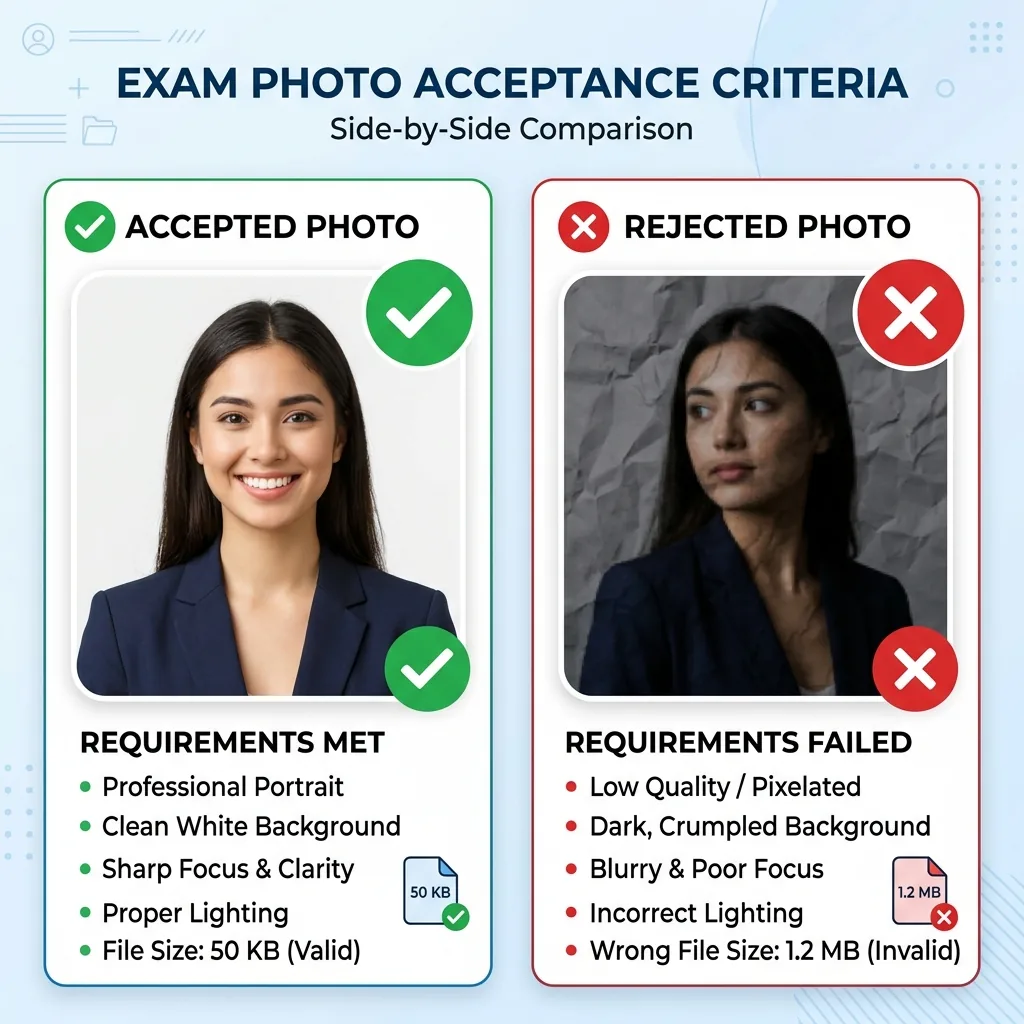
Unlike a studio passport photo, an exam portal photo needs to match your current appearance. Where the active notice asks for a prepared file, use its published photo instructions as the checklist:
- Background: plain white or very light off-white. A patterned wall, room background, or coloured sheet is an automatic rejection on most portals. Use a white sheet taped to a wall, or stand close to a plain painted surface.
- Lighting: face the light source — a window or lamp — not away from it. Shadows across one side of the face trigger biometric validator failures on portals with automated checks.
- Framing: head and shoulders, face centred, filling roughly 70–80% of the frame height. Do not include hands, other people, or distracting elements in the frame.
- Expression: neutral, mouth closed. Most exam portals disallow open-mouth smiles or squinting eyes.
- Dress: formal or semi-formal in a solid colour. No caps, hats, sunglasses, or heavy-framed glasses (some portals disallow glasses entirely — check the notification for your exam).
- Recency: some notifications specify how recent the photo must be, and UPSC in particular can set a tight window in a given cycle — check the notification. Do not use an old photo even where no window is stated: an invigilator can and will flag a visible difference in appearance.
For a detailed guide to taking a compliant photo at home — including phone setup, lighting tips, and the exact mistakes that get photos rejected — see how to take a passport photo at home.
Why uploads get rejected — and how to fix each one
Exam portal rejection messages are typically terse. Here is what each failure usually means and how to fix it:
- File too large (over the cap): compress to a specific KB target. A general “reduce quality” slider is unreliable; target a value like 35 KB to land safely within the 20–50 KB band.
- File too small (under the minimum): the file was over-compressed. Re-export at a higher JPEG quality setting, or use the KB resizer to set a higher target.
- Wrong format: the portal expects JPG and received PNG, WebP, or HEIC. Convert to JPG before uploading. iPhones and recent Android phones save as HEIC by default — check your camera settings.
- Wrong pixel dimensions: the photo or signature does not match the portal's required width × height. Use the exam-specific resizer to apply the published pixel preset where the authority provides one.
- Signature background grey or cream: use the signature resizer to clean the background. This is the single most common rejection reason for signatures.
- All-caps signature (SSC only): the validator flags printed capital letters. Re-sign in cursive.
- Photo not recent enough: where a notification specifies a recency window, use a fresh photo taken for this application rather than an old file.
- Missing name and date text (where required): a few forms — notably the Indian Air Force Agniveer intake, which needs a physical slate with your name and date held in the photo — reject images without it. This is not a UPSC requirement. See how to add name and date when your specific notification asks for it.
For a complete breakdown with screenshots and fixes, see why exam photos and signatures get rejected.
How to resize for any exam in one step
Pick your exam in the Exam Application Kit to see whether the registry records live capture or prepared files, then apply its stored KB targets and published dimensions where available. Confirm the active notice.
To prepare each file separately:
- Photo to a selected KB target: resize to 50 KB for the standard ceiling, or set a custom KB target for exams with a different cap.
- Signature: the resize signature to 20 KB tool removes the paper background, crops tightly, and outputs within the required band.
- Per-exam resizers: dedicated tools for SSC, UPSC, and IBPS apply the selected KB target and any published pixel dimensions recorded for that board. Confirm the current notification before submitting.
Everything runs in your browser — no files are uploaded to a server, no account is required, and there is no watermark.
Frequently asked questions
Can I use the same photo for SSC, IBPS and SBI in the same cycle?
Current SSC applications capture the photograph live and publish no prepared-photo pixel size. IBPS and SBI use separate prepared uploads and list 200×230 px and 200×230 px as preferred dimensions. Follow each active form instead of reusing one export automatically.
Why do exam portals set a minimum file size as well as a maximum?
Where a portal publishes a KB band, both ends are part of its file check. Excessive compression can make a photograph or signature difficult to review, so prepare the file within the band shown in the current notice rather than targeting the smallest possible output.
My signature scan looks grey or cream — will it be rejected?
A grey or cream background may not match a portal's listed paper or background instruction. Use the signature resizer to clean the paper tone, then export in the format and KB band named by the current notice.
What are the current UPSC photo and signature sizes?
UPSC's instructions list a 20–200 KB JPG photograph on a plain white background, with no fixed photo pixel size, and a live photograph taken during the application. The signature upload is 20–100 KB in JPG: one image measuring 350–500 pixels with three signatures arranged vertically. Confirm the current instructions before applying.
What format should I use — JPG or PNG?
Use the format named for the specific file: SSC lists JPEG / JPG for its separate signature, RRB lists JPG / JPEG for its separate signature, IBPS lists JPG / JPEG, SBI lists JPG / JPEG, UPSC lists JPG, and the stored NTA source lists JPG. Convert HEIC or WebP only to a format named in the active instructions.
Do specifications change between exam cycles?
Yes. File-size bands, formats, dimensions and capture workflows can change between notifications. This guide reads from the site's cited registry; always open the source linked for the exam and confirm the active cycle before submitting.